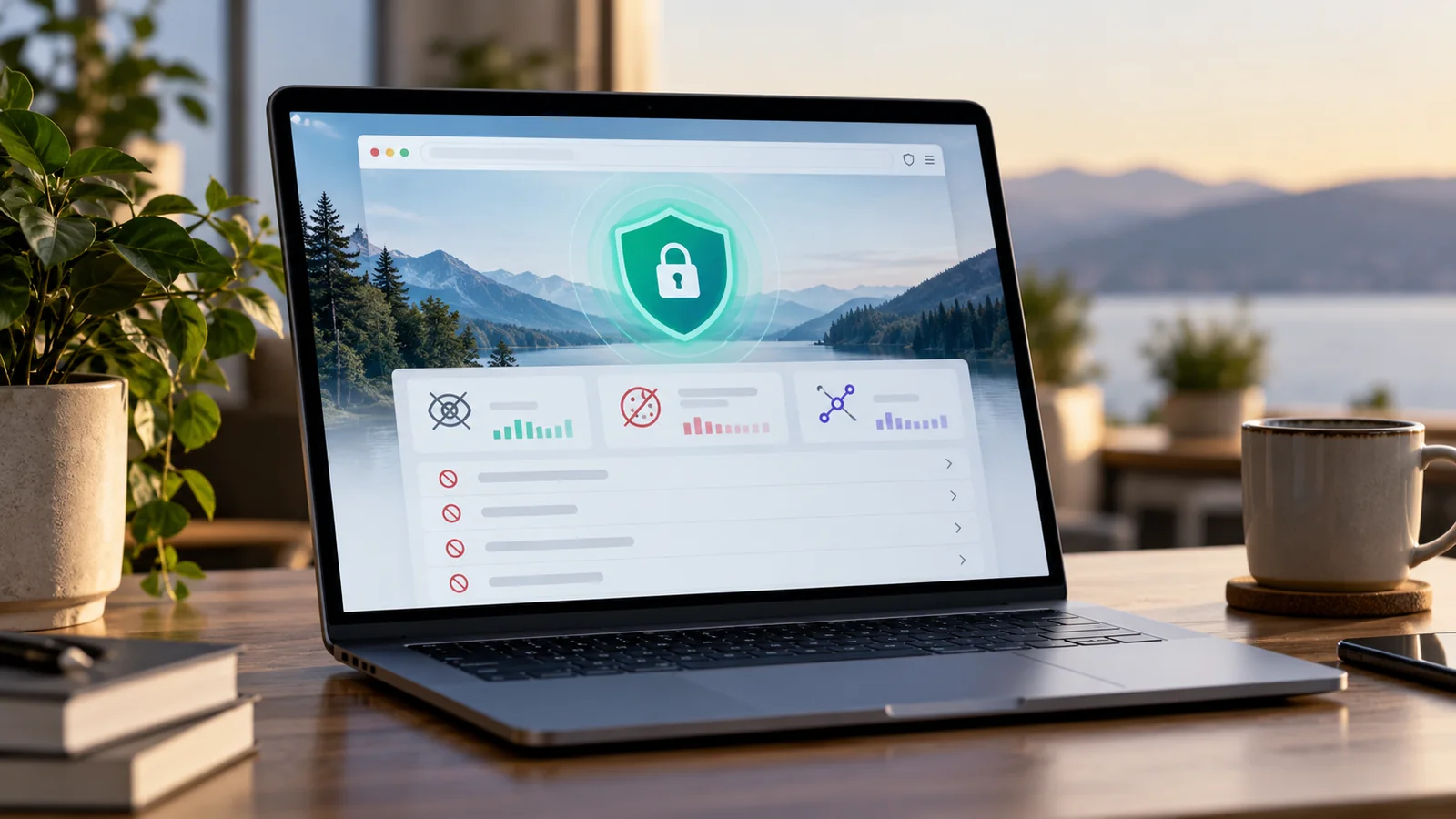
Your web browser handles passwords, cookies, downloads, location requests, camera access and a detailed history of the sites you visit. Modern browsers include important privacy protections, but no browser can make a user invisible on the internet.
Understanding the difference between local privacy, tracking protection and network anonymity helps you choose the right settings without relying on misleading promises.
What information can a website observe?
When you visit a site, it may receive or infer information such as:
- your IP address and approximate network location;
- browser and operating-system details;
- screen size, language and time zone;
- cookies and site storage;
- pages viewed and interactions;
- referring links and advertising parameters;
- permissions you grant, such as location or camera access;
- account information when you sign in.
Some of this is necessary to deliver a page. Other data is used for analytics, personalization, fraud prevention or advertising.
Cookies and site storage
A cookie is a small piece of data associated with a website. First-party cookies commonly keep a user signed in, remember settings or store a shopping cart. Third-party cookies are set or accessed in a cross-site context and have historically been used for advertising and tracking.
Browsers increasingly restrict third-party cookies and other cross-site tracking techniques. Blocking them can reduce some tracking, but it may also affect embedded media, federated login or other site features. Most browsers allow site-specific exceptions.
Firefox Enhanced Tracking Protection
Mozilla’s Enhanced Tracking Protection blocks categories such as social-media trackers, cross-site tracking cookies, fingerprinting scripts, cryptominers and certain tracking content. Protection levels vary between Standard, Strict and Custom settings.
Stricter blocking may improve privacy but can break parts of some sites. Firefox allows users to turn protection off for a specific site when necessary.
Safari and WebKit tracking prevention
WebKit, the browser engine used by Safari, includes tracking-prevention technologies such as Intelligent Tracking Prevention. These features are designed to reduce cross-site tracking by limiting cookies and other website data associated with tracking behavior.
Tracking methods evolve, so browser protections also change. A privacy feature is not a permanent guarantee against every technique.
Chrome cookie controls
Chrome allows users to manage third-party cookies and site exceptions through Privacy and security settings. Depending on the version, device, region and account configuration, available controls may differ. Users can inspect and remove stored site data or allow an exception when blocking interferes with a required service.
What private or incognito mode actually does
Private browsing creates a separate local session. When all private windows are closed, the browser generally removes the session’s local history, cookies and temporary site data. It is useful on a shared device or when you do not want a browsing session mixed with ordinary history.
Private browsing does not make you invisible. Google’s Chrome documentation explicitly notes that websites, schools, employers and internet service providers may still observe activity. Downloads and bookmarks can remain on the device, and signing into an account identifies the session to that service.
What private browsing does not hide
- your public IP address;
- activity from the network operator or internet provider;
- activity from websites you visit;
- activity associated with accounts you sign into;
- malware or monitoring software on the device;
- files you download;
- browser or device characteristics used for fingerprinting.
Browser fingerprinting
Fingerprinting combines characteristics such as browser version, fonts, screen size, graphics behavior, language and hardware signals to distinguish a device or session. A fingerprint may work without a traditional cookie.
Some browsers reduce or standardize exposed information, block known fingerprinting scripts or partition data by site. Complete prevention is difficult because websites need some device information to function.
Permission controls
Browsers ask before granting sensitive capabilities such as precise location, microphone, camera or notifications. Review permissions periodically:
- remove access from sites that no longer need it;
- deny unexpected notification requests;
- allow camera and microphone access only for the current task;
- check whether a permission is permanent or temporary;
- use operating-system privacy settings as an additional layer.
Safe Browsing and malicious-site warnings
Browsers and security services may compare sites or downloads with lists and models associated with phishing or malware. These warnings reduce risk but cannot identify every new threat. A page without a warning is not automatically trustworthy.
DNS, HTTPS and what the browser can protect
HTTPS encrypts data between the browser and the site, helping protect it from modification or casual interception in transit. It does not prove that the site is honest. Encrypted DNS can hide DNS queries from some observers, but the chosen resolver and destination network may still receive relevant information.
Extensions can help — or create risk
Extensions may block content, manage passwords or add privacy tools, but they can also receive broad access to pages and browsing data. Install only what you need, review permissions, prefer well-maintained extensions and remove those you no longer use.
Account sync changes the privacy picture
Signing into a browser can synchronize history, bookmarks, passwords, tabs or settings. This is convenient, but it connects data to an account and cloud service according to the provider’s settings. Review what is synchronized, secure the account with strong MFA and understand recovery options.
Practical browser privacy settings
- Keep the browser and operating system updated.
- Enable built-in tracking protection at a level that works for the sites you use.
- Block or limit third-party cookies, with exceptions only when needed.
- Review camera, microphone, location and notification permissions.
- Remove unnecessary extensions.
- Use unique passwords and enable MFA on synchronized browser accounts.
- Clear site data when troubleshooting or when using a shared device.
- Do not confuse private browsing with anonymity.
When you may need additional tools
A browser’s privacy controls do not replace device security, a trustworthy network, account protections or organizational policy. A reputable VPN can hide traffic from the local network and replace the visible destination IP with the VPN server’s IP, but the VPN provider becomes part of the trust relationship. Tor provides a different anonymity model, with performance and compatibility tradeoffs. No tool makes unsafe behavior harmless.
Frequently asked questions
Should I block all cookies?
That offers strong local control but can break sign-ins and site functions. A practical starting point is limiting third-party cookies while allowing necessary first-party storage, then reviewing exceptions.
Does clearing cookies delete my account?
No. It usually removes local sign-in state and preferences. Your account remains with the service.
Is one browser always the most private?
Privacy depends on defaults, settings, extensions, signed-in services, update practices and the user’s threat model. Compare documented behavior rather than relying only on marketing claims.
Can my employer see browsing on a work device?
Potentially. Managed devices and networks may include monitoring, security and policy tools. Private mode does not bypass legitimate device or network management.