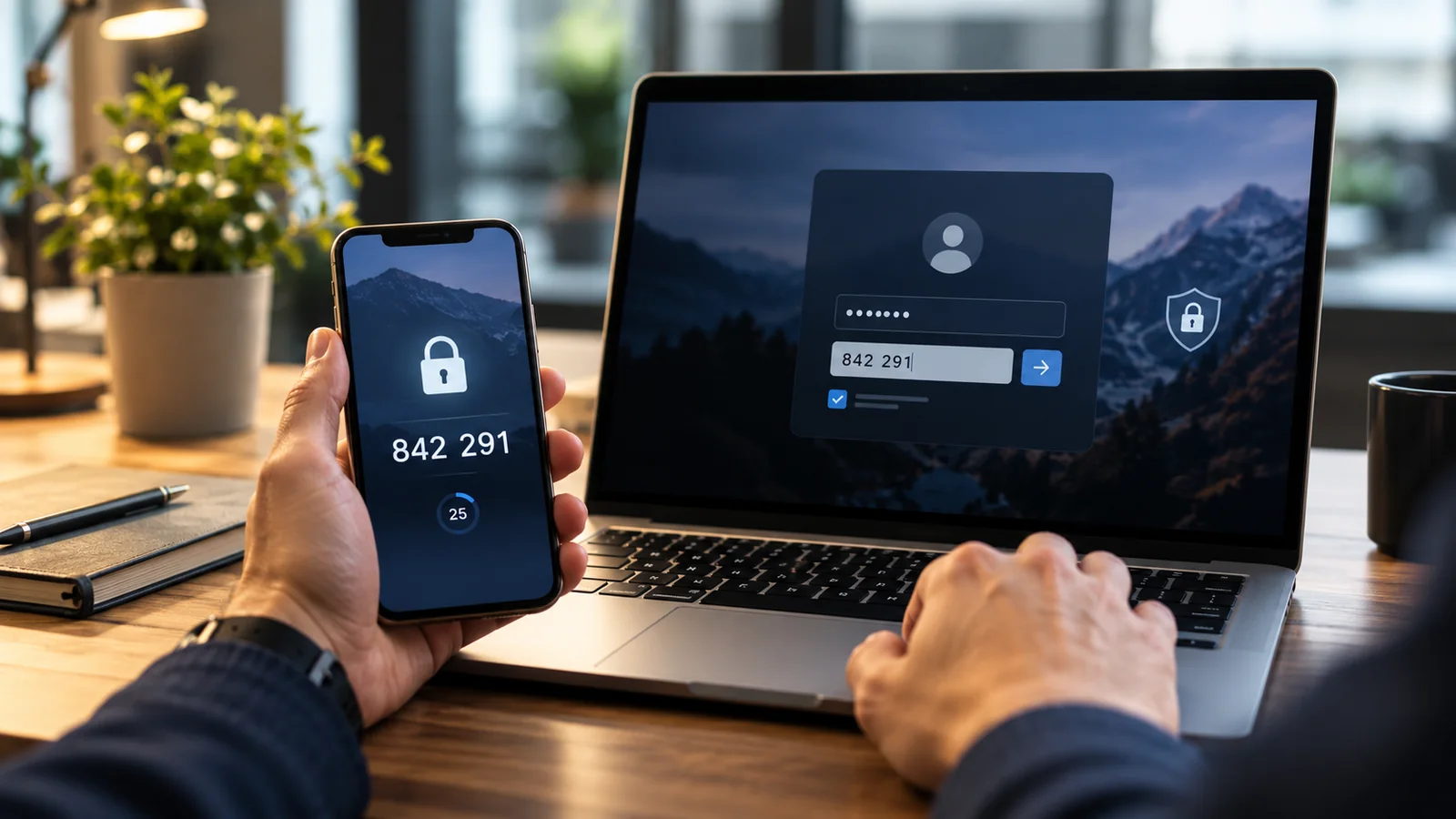
Two-factor authentication adds a second proof of identity to an account login. If a password is stolen, the attacker still needs the additional factor. The same idea is often called two-step verification or multifactor authentication.
It is one of the most effective improvements an ordinary user can make, but not all methods offer the same protection. A text-message code is different from a security key, and recovery settings can be just as important as the login itself.
What counts as an authentication factor?
Authentication factors are commonly grouped into three types:
- Something you know: a password or PIN.
- Something you have: a phone, authenticator, security key or trusted device.
- Something you are: a fingerprint, face or other biometric characteristic.
True multifactor authentication uses factors from different categories. Two passwords would be two steps, but they would still rely on the same factor type.
Why a password is not always enough
Passwords can be reused, phished, exposed in a breach or stolen by malware. Adding another factor creates an additional barrier. An attacker who knows the password may still be unable to finish the login.
MFA does not make an account invulnerable. Attackers may try to steal codes, take over a phone number, trick users into approving prompts or steal active sessions. The goal is to make compromise substantially harder and to choose the strongest practical method.
Common two-factor methods
SMS or voice codes
The service sends a temporary code to a phone number. This is widely supported and usually safer than a password alone. However, phone numbers can be transferred through SIM-swap fraud, and codes can be entered into phishing pages.
Email codes
A code is sent to an email account. The security depends heavily on the email account itself. If email is compromised, the additional factor may offer little protection.
Authenticator-app codes
An authenticator app generates a short-lived code from a secret established during setup. It does not require mobile service after setup. The code can still be phished if a user enters it into a fake site.
Push notifications
A trusted app asks the user to approve or deny a login. Push is convenient, but repeated prompts can lead to accidental approval. Number matching and clear login details reduce this risk. Never approve a request you did not initiate.
Security keys
A hardware security key communicates through USB, NFC or another supported interface. Standards such as FIDO can bind authentication to the legitimate website, making these keys resistant to ordinary credential-phishing pages.
Passkeys
A passkey uses public-key cryptography and is unlocked through a device or credential provider. Passkeys can be synced or device-bound, depending on implementation. They can provide phishing-resistant authentication without requiring the user to type a shared secret.
Which method should you choose?
Use the strongest method that the service supports and that you can recover reliably:
- Security key or passkey: preferred for high-value accounts when available.
- Authenticator app or well-designed push: strong general options.
- SMS: better than a password alone, but use stronger methods where possible.
- Email code: useful only if the email account is independently well protected.
For especially important accounts, register more than one secure authenticator so that one lost device does not cause permanent lockout.
Start with your highest-impact accounts
- primary email;
- password manager;
- banking and payment accounts;
- mobile-carrier account;
- cloud storage;
- work or school identity;
- social media and messaging.
Email and mobile accounts deserve priority because they are often used to reset other services.
How to enable two-factor authentication
- Open the account’s security settings using its official app or website.
- Look for “two-factor authentication,” “two-step verification,” “multifactor authentication,” “passkeys” or “security keys.”
- Select the strongest supported method you can maintain.
- Follow the setup instructions and test a login.
- Save recovery codes securely.
- Add a second trusted authenticator if the service allows it.
- Review trusted devices and backup phone numbers.
Protect recovery codes
Recovery codes can bypass the normal second factor, so treat them like high-value credentials. Store them in an encrypted password manager, an offline secure location or another protected method. Do not leave them in an ordinary screenshot or email draft.
Beware of MFA fatigue
An attacker who has a password may send repeated approval requests and hope the user eventually accepts one. If you receive a prompt you did not initiate:
- deny it;
- do not share a code;
- change the password from a trusted device;
- review account sessions and recovery details;
- report the event if it involves work or school.
Never read a verification code to an unexpected caller
A code is often the final step an attacker needs. A message may even say not to share it. A genuine support agent should not ask for the code used to complete your own login.
Biometrics and privacy
On many devices, a fingerprint or face scan unlocks a locally protected credential; the website may not receive the raw biometric image. The exact design depends on the device and service. Use a strong device PIN and keep the operating system updated.
What if you lose your phone?
A good setup includes recovery before the emergency:
- keep recovery codes;
- register a second authenticator or security key;
- understand how the authenticator app backs up or transfers accounts;
- protect the mobile-carrier account from unauthorized number transfers;
- remove lost devices from account settings as soon as possible.
Does MFA stop every attack?
No. Malware may steal an authenticated session, a compromised device may expose data, and a deceptive approval flow may fool a user. MFA should be combined with unique passwords, software updates, phishing awareness, device security and account monitoring.
Frequently asked questions
Is two-factor authentication the same as two-step verification?
The terms are often used interchangeably by services. Technically, multifactor authentication means the steps use different factor types, but users should focus on the actual method offered.
Should I use SMS if it is the only option?
Usually yes. It is generally safer than a password alone, though you should move to an authenticator, passkey or security key when the service provides one.
Can I use the same authenticator app for multiple accounts?
Yes, many authenticator apps store entries for multiple services. Protect access to the app and understand its backup and recovery behavior.
Why are security keys called phishing-resistant?
Compatible security keys verify the website origin during authentication. A fake site normally cannot use the response to sign in to the real site.